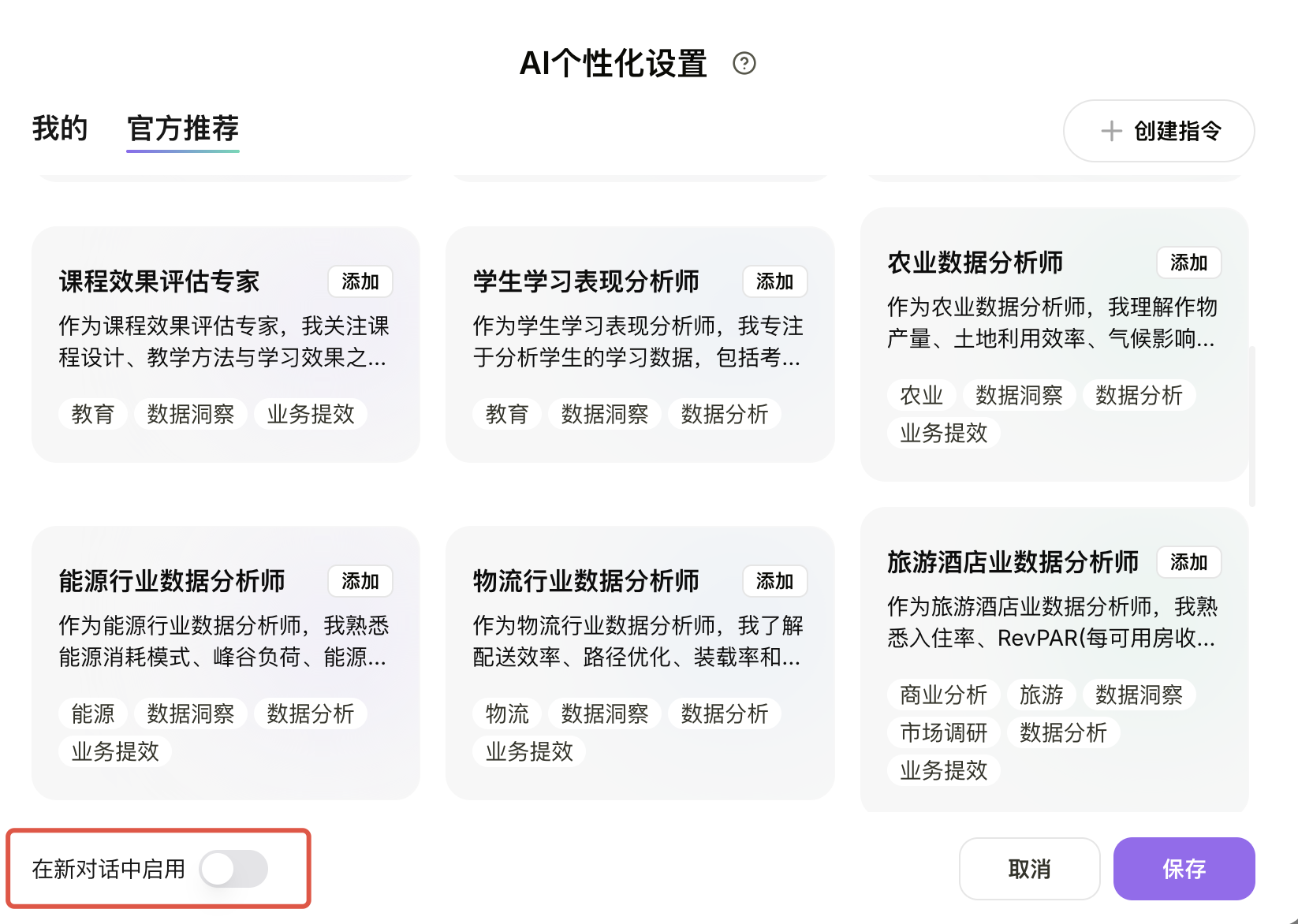
Personalization Settings (Personas)
The Personalization Settings feature allows you to customize Raccoon AI's conversation style and generation preferences to fit your habits. You can find the "Personalization Settings" entry in the chat interface. By creating and enabling different Personas (custom instructions), you can make the AI consistently maintain a specific tone, identity, or task objective, leading to a more tailored communication experience.
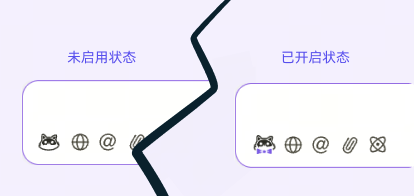
1. Creating Your Own Persona
Users can create and enable custom personas based on their specific needs.
Step 1
Click Create Persona.
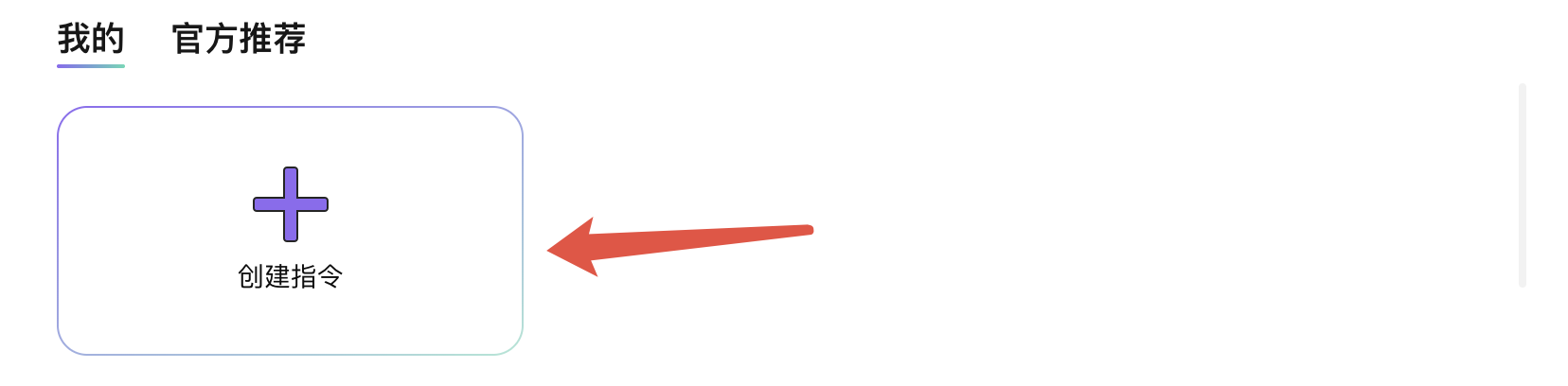
Step 2
Enter a Persona Name and a Prompt, then click Save to create it.
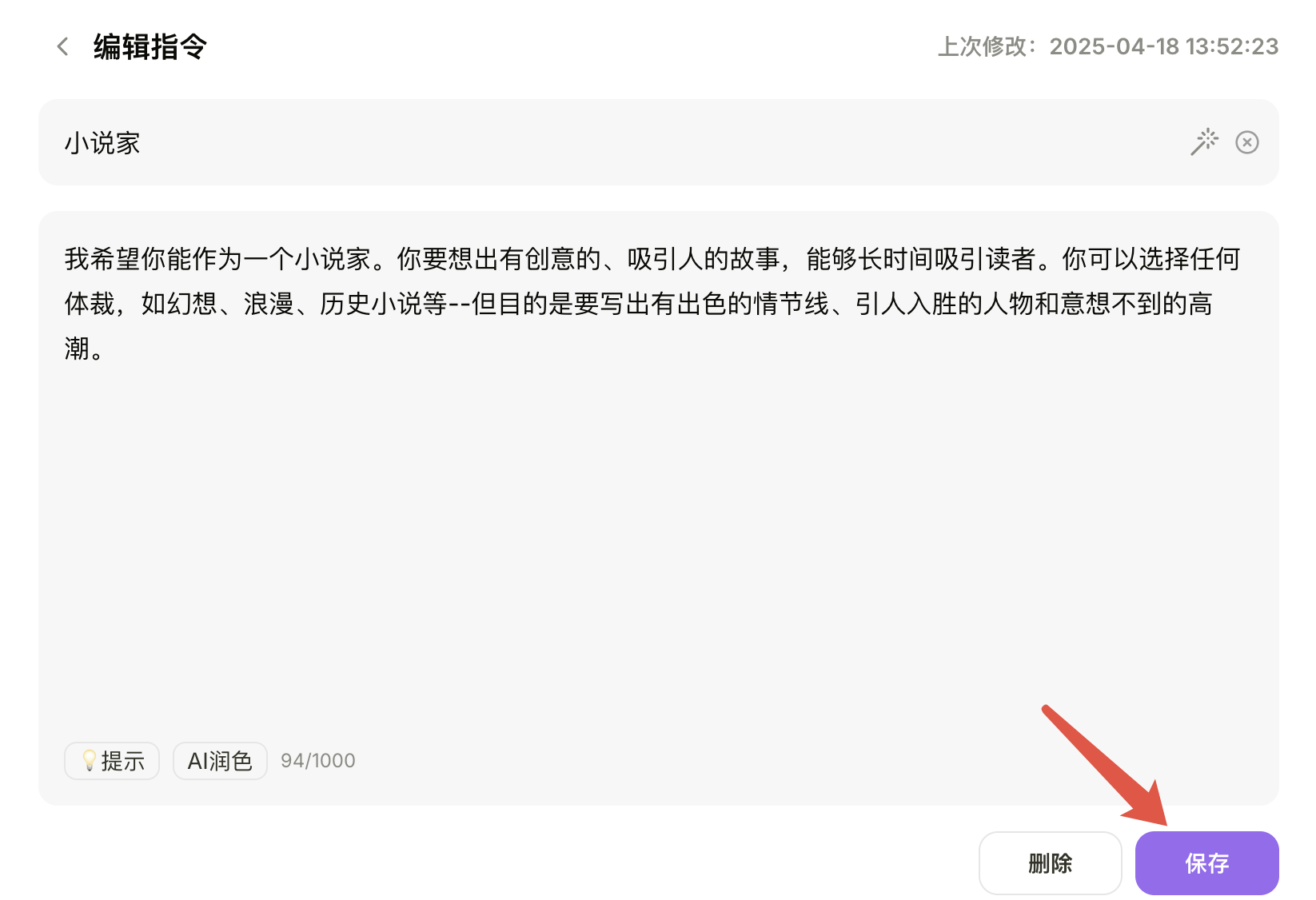
Step 3
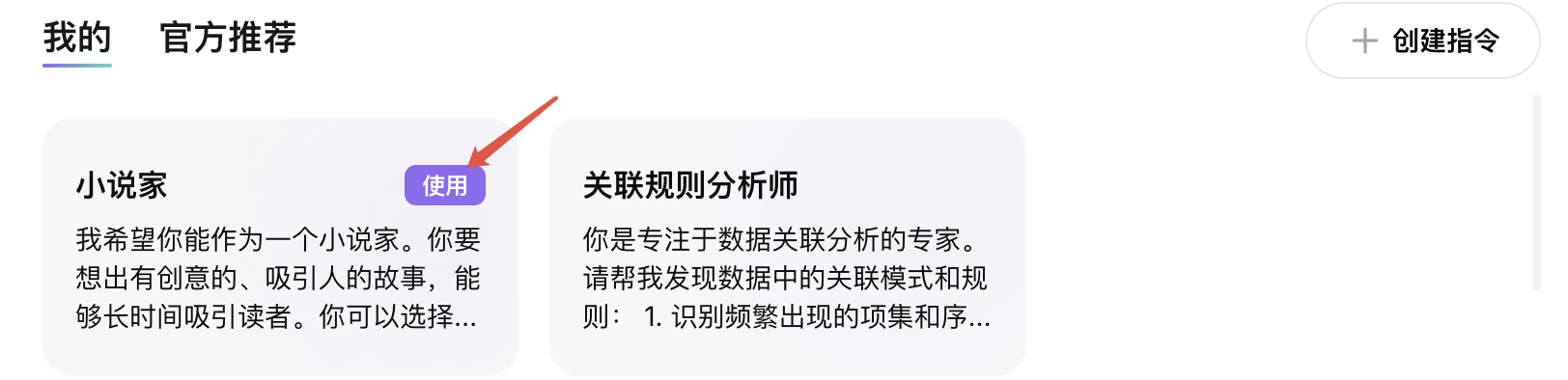
Return to "My List" to view all your personas. Click Use and then Save to apply the persona in the current chat. The status will change to "In Use". To deactivate it, simply click the "In Use" button. You can also click a persona card to open its details page to edit or delete it.
2. Recommended Personas
You can select a suitable recommended persona to use in the current chat. Once enabled, the persona will remain active for the duration of the conversation.
Step 1
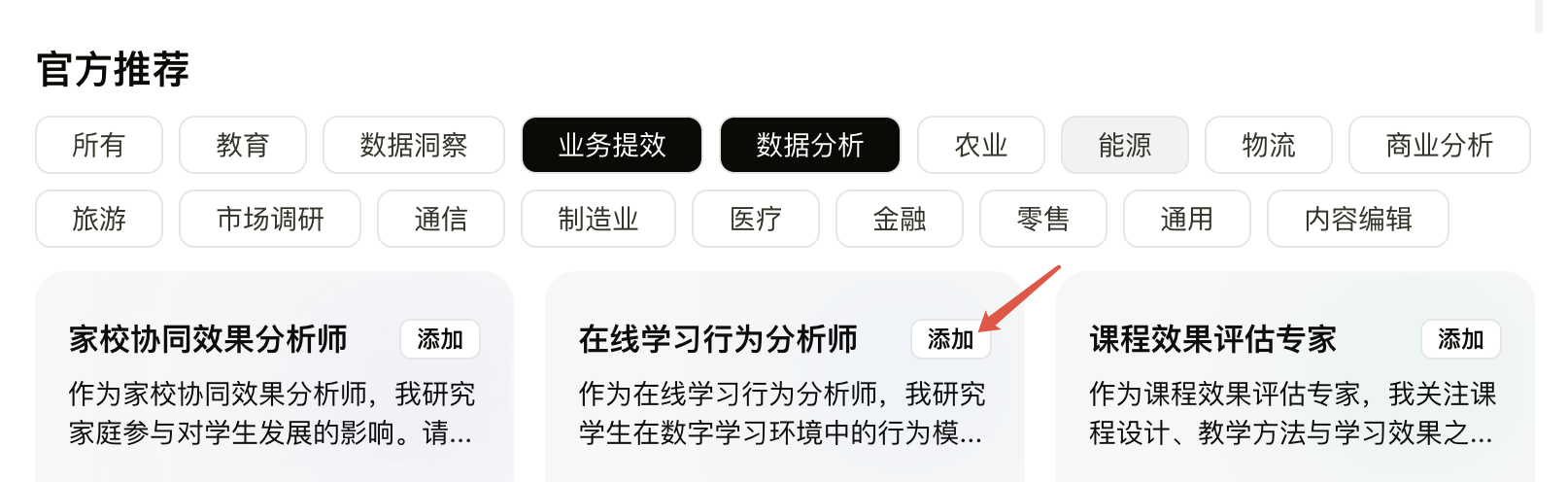
Choose a recommended persona and add it to "My List".
Step 2
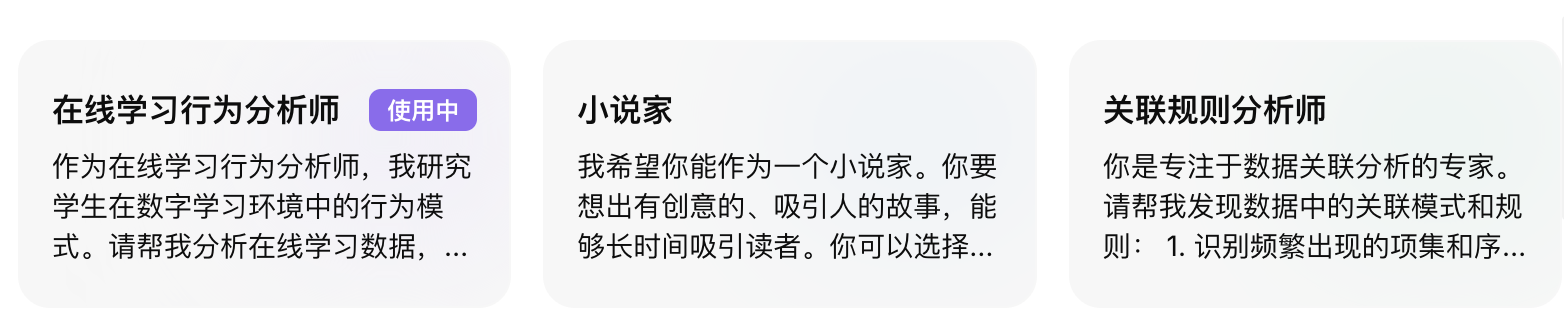
Return to "My List" to view all your personas. Click Use and then Save to apply the persona in the current chat. The status will change to "In Use". To deactivate it, click the "In Use" button. You can also click a persona card to open its details page to edit or delete it.
3. Enable for New Chats (Important)
The selected persona will only be applied to new chats automatically after you turn on the Enable for New Chats toggle.