Homepage
Quick Access to Features
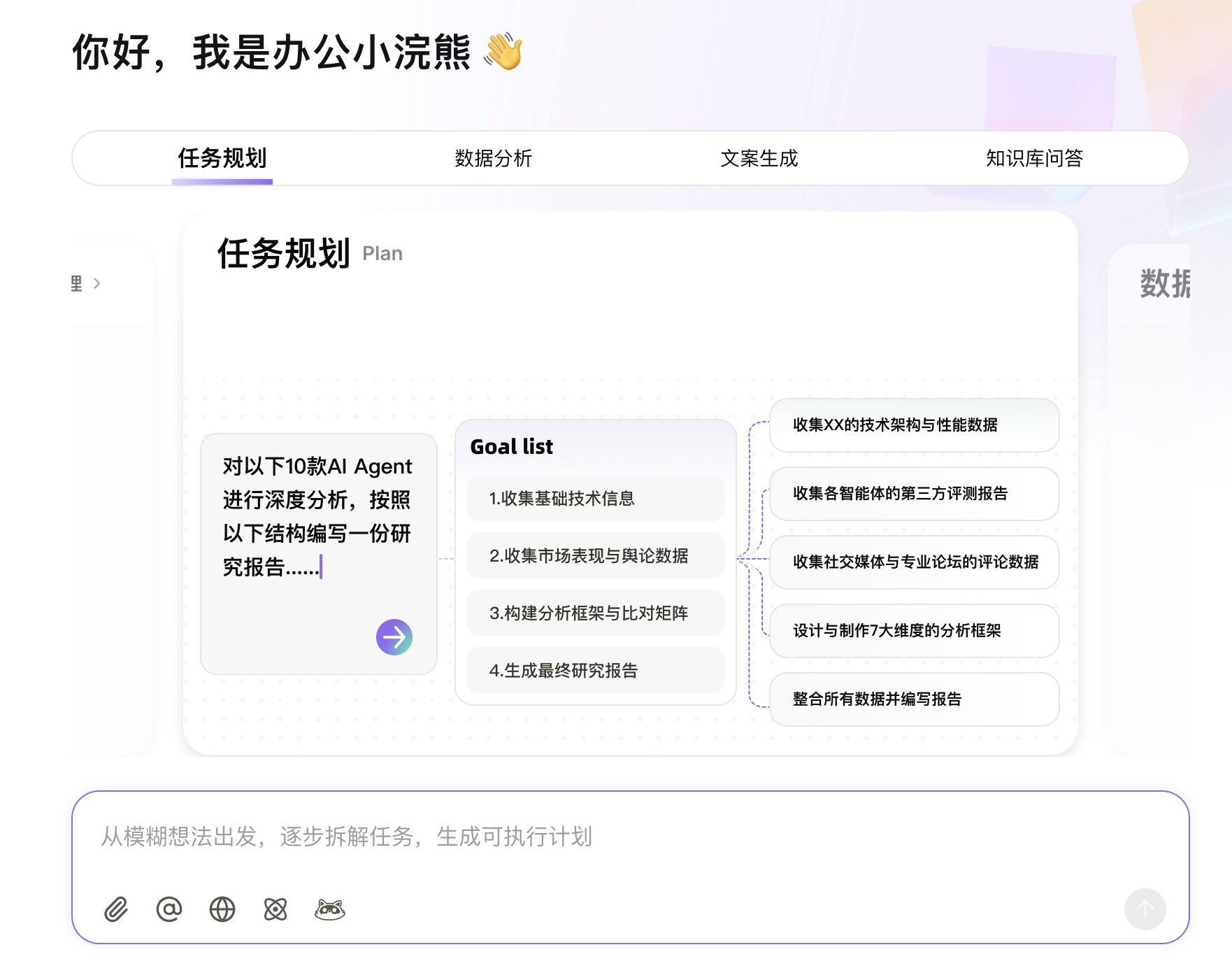
The homepage provides quick access to Task Planning, Data Analysis, Content Generation, and Knowledge Base Q&A. You can switch between cards and use the chat box below the card to quickly perform various operations.
- Task Planning: Send an instruction, and Office Raccoon will break down the task step-by-step, ultimately generating a complete report/plan.
- Data Analysis: Upload a file to quickly analyze its content, generating visualizations and insights.
- Content Generation: Automatically generate various types of office documents and also supports creating well-structured documents.
- Knowledge Base Q&A: Quickly upload files to your knowledge base to perform Q&A based on its content, and also build your own knowledge base.
Chat Icon Descriptions
Different core features are suited for different scenarios. The system will adjust the display order of chat functions based on the context.
Chat Box: Enter your instructions here.
Personalization: Set up favorite prompts and usage preferences. Office Raccoon will intelligently optimize conversations and content recommendations based on your habits and scenarios.

- Web Access: Click the icon to toggle the web access feature (the feature is on when the icon has a dark background). Web access mode allows searching for the latest content online.

- Deep Thinking: Click the Deep Thinking button to enable Deep Thinking mode.

- Upload File: Click the upload file button, select a local file to upload, and then issue your command. Office Raccoon can help you process/analyze the file.

- Reference Knowledge Base Files: You can use the
@symbol to reference the following content for targeted content comprehension and comprehensive analysis:- Global Knowledge Base
@all: Includes all files in Knowledge Management and all your documents. - File Resources: Specify a single folder or file from Knowledge Management.
- Document Resources: Specify a single document from My Documents.
- Global Knowledge Base

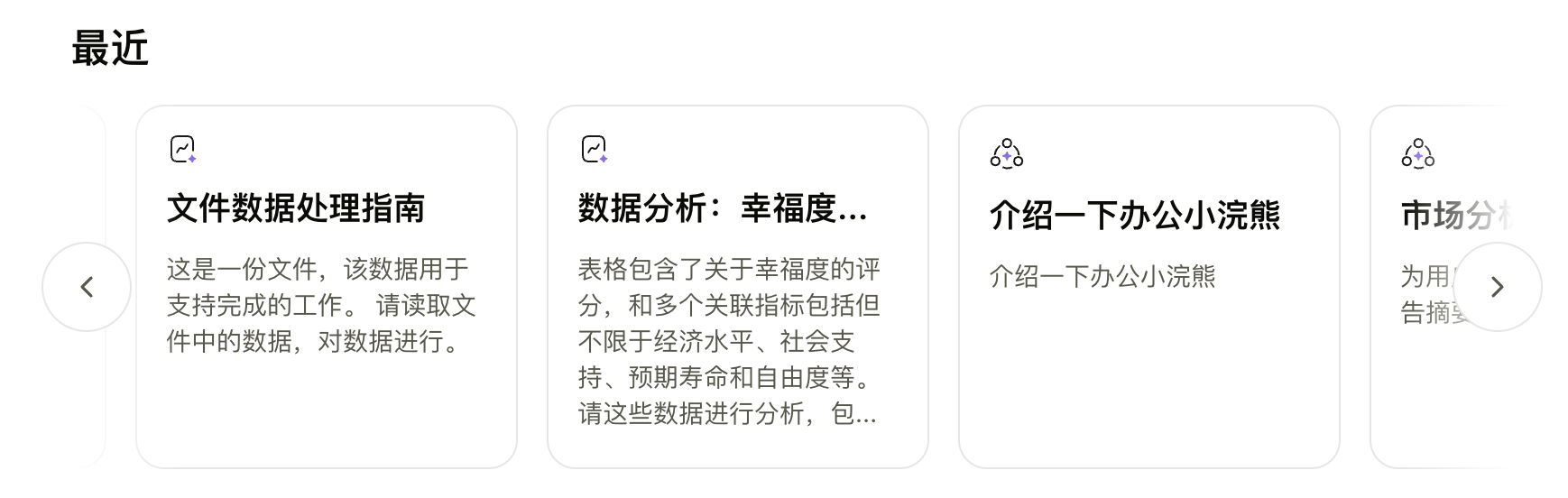
Recent Workspace
Displays recent conversations, documents, and knowledge bases in a timeline. Click a card to quickly jump to the corresponding workspace.