Chat Interface Guide
1. Uploading Files
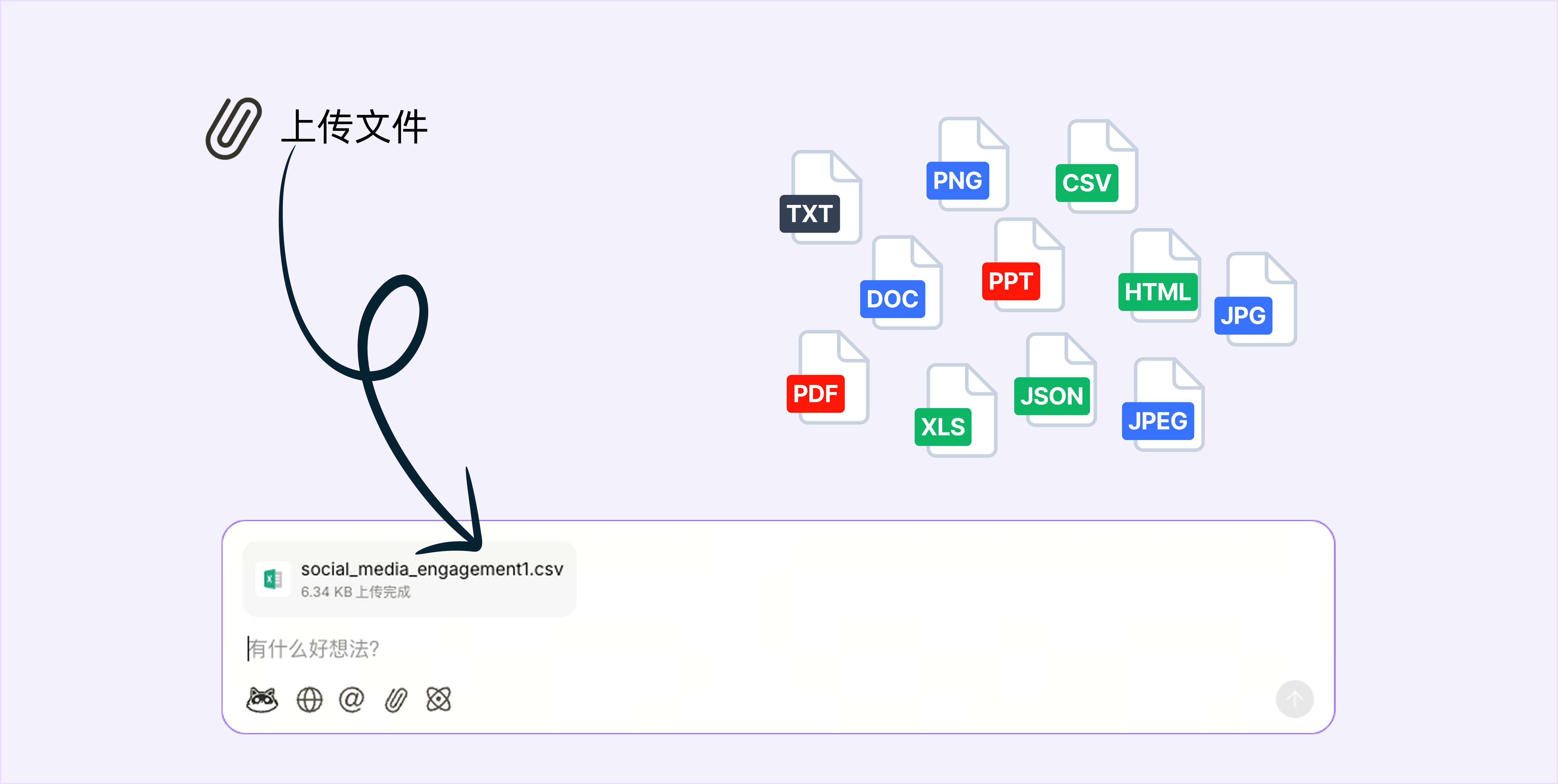
Supported File Types: PDF, PPT, HTML, Word (.doc/.docx), Excel (.xls/.xlsx/.csv), Image (.png/.jpg/.jpeg), Text (.txt), Markdown (.md), and more.
How to Upload:
- Click the "Upload" icon next to the chat input box and select your files.
- Drag and drop files directly into the chat area.
Limits and Progress: The Free Plan allows up to 10 files per conversation, with a total size limit of 80MB (expandable with the Pro Plan). Upload progress is displayed above the chat box. If an upload fails, please check your network connection and try again.
2. Mentioning Files
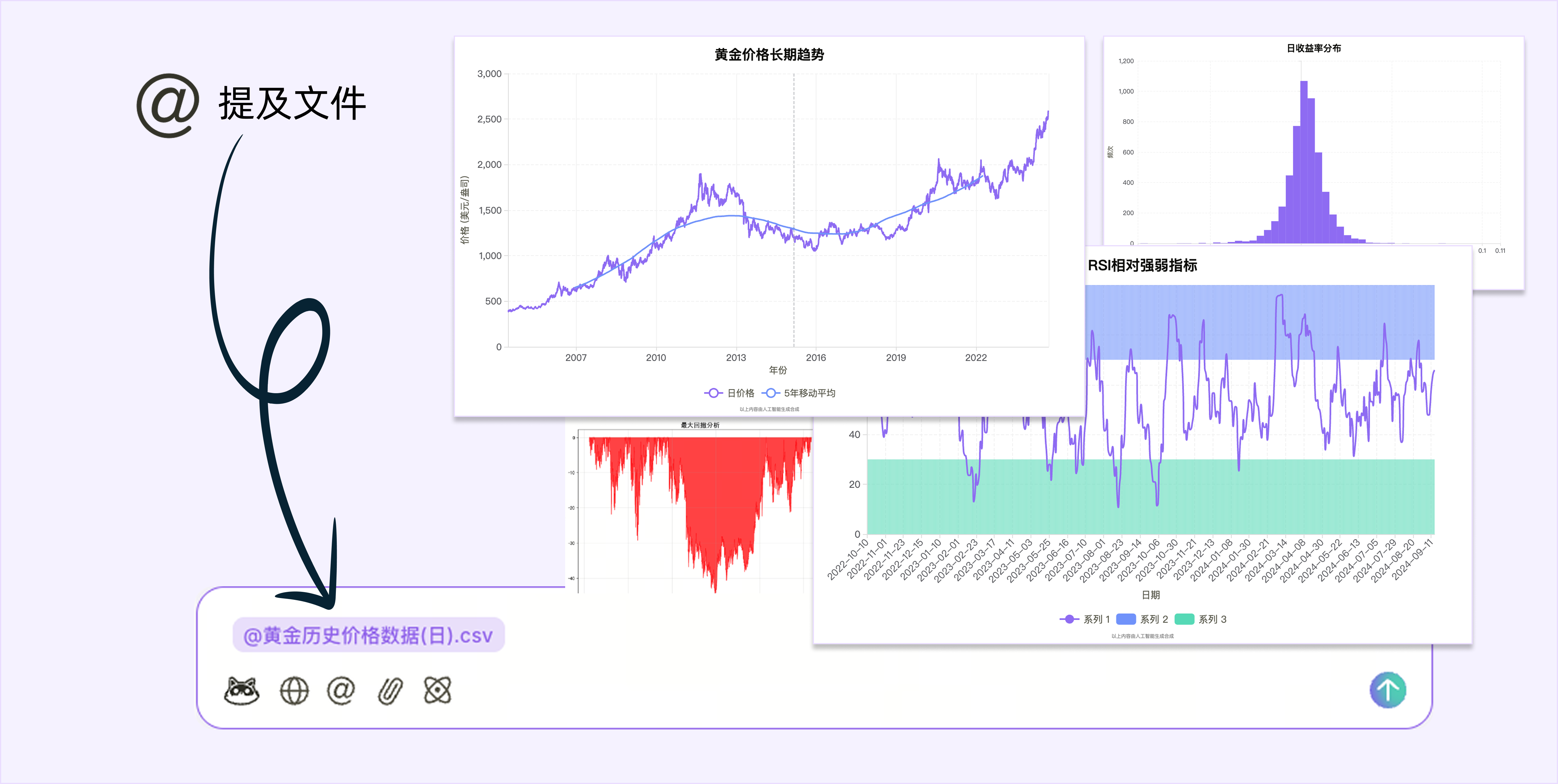
How it Works: Type
@(or click the "Mention File" icon) in the input box. A list of files from your Knowledge Base will appear. Select a file to reference it in your prompt.Limits: The Free Plan allows you to mention up to 10 files per conversation, with a total size limit of 80MB (expandable with the Pro Plan).
Use Cases:
- Save time by avoiding re-uploads when you need to use the same file multiple times.
- When writing weekly reports, creating project proposals, reading papers, or summarizing meeting minutes, quickly mention relevant documents to ensure the AI generates content based on the specified material, preventing omissions or irrelevant output.
- For teams, upload frequently used SOPs, document templates, product information, or sales scripts to the Knowledge Base. Anyone can then reference them anytime to ensure consistent messaging and information across the team.
3. Web Search
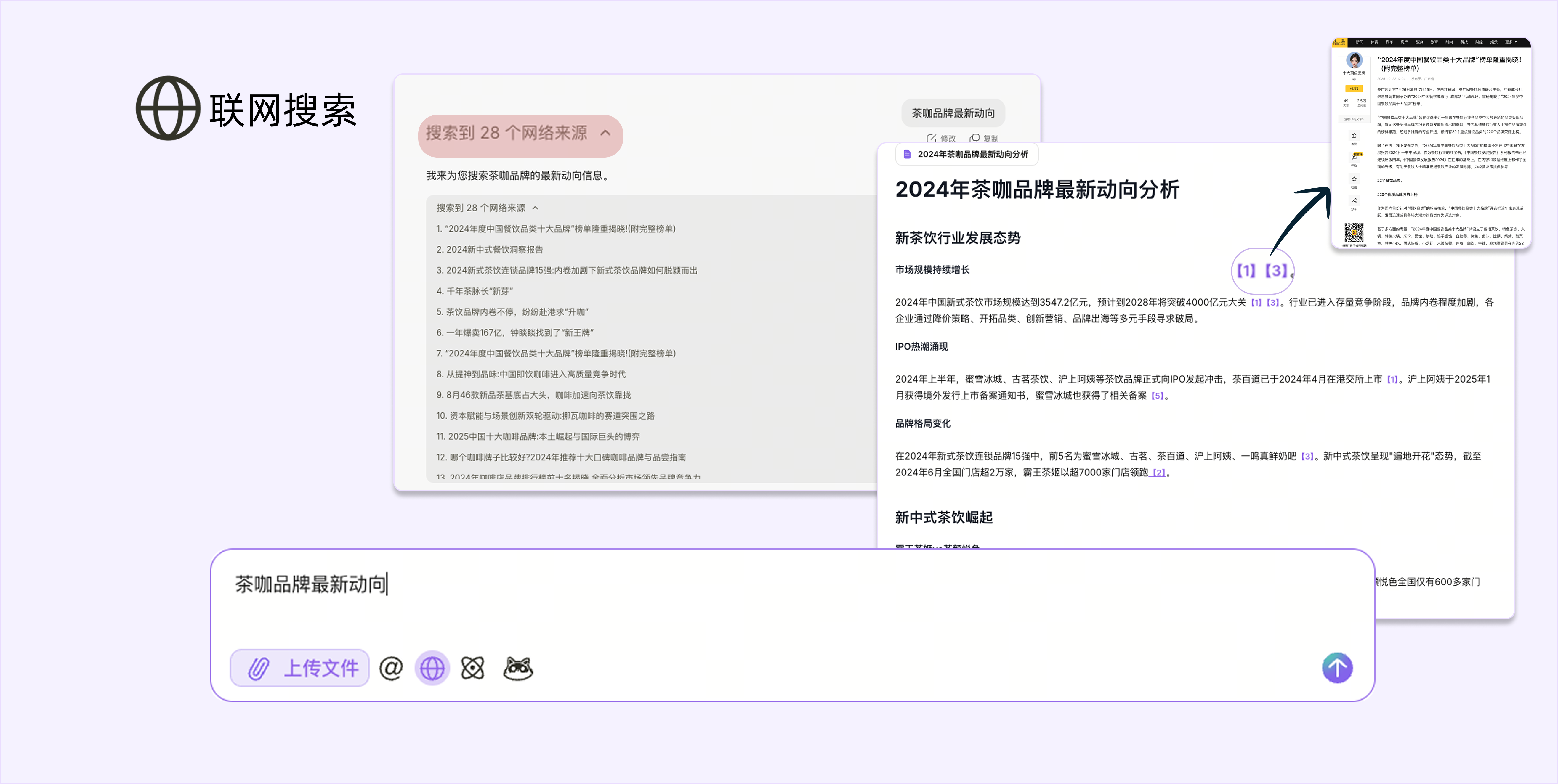
Feature Overview: Enabling Web Search allows the AI to retrieve real-time public information from the internet to supplement its knowledge or verify facts.
How to Enable: Click the "Web Search" toggle switch in the bottom-left corner of the chat window.
Use Cases:
- Find the latest news, prices, public data, industry reports, or verify sources.
How Results are Displayed: Search results are collapsed at the top of the response, and the main sources are listed below the answer (you can click to view the original page).
Important Note: Web Search may return information that has not been fully verified. For important or high-stakes content, always double-check the information and save the source links.
4. Deep Thinking Mode
How it Works: The Deep Thinking Mode is designed for handling problems that require multi-step reasoning or complex logic, such as developing a data analysis strategy, getting advice on complex decisions, or creating structured summaries of long documents.
How to Activate: Click the "Deep Thinking" toggle switch in the bottom-left corner of the chat window.
5. Custom Personas (Personalization)
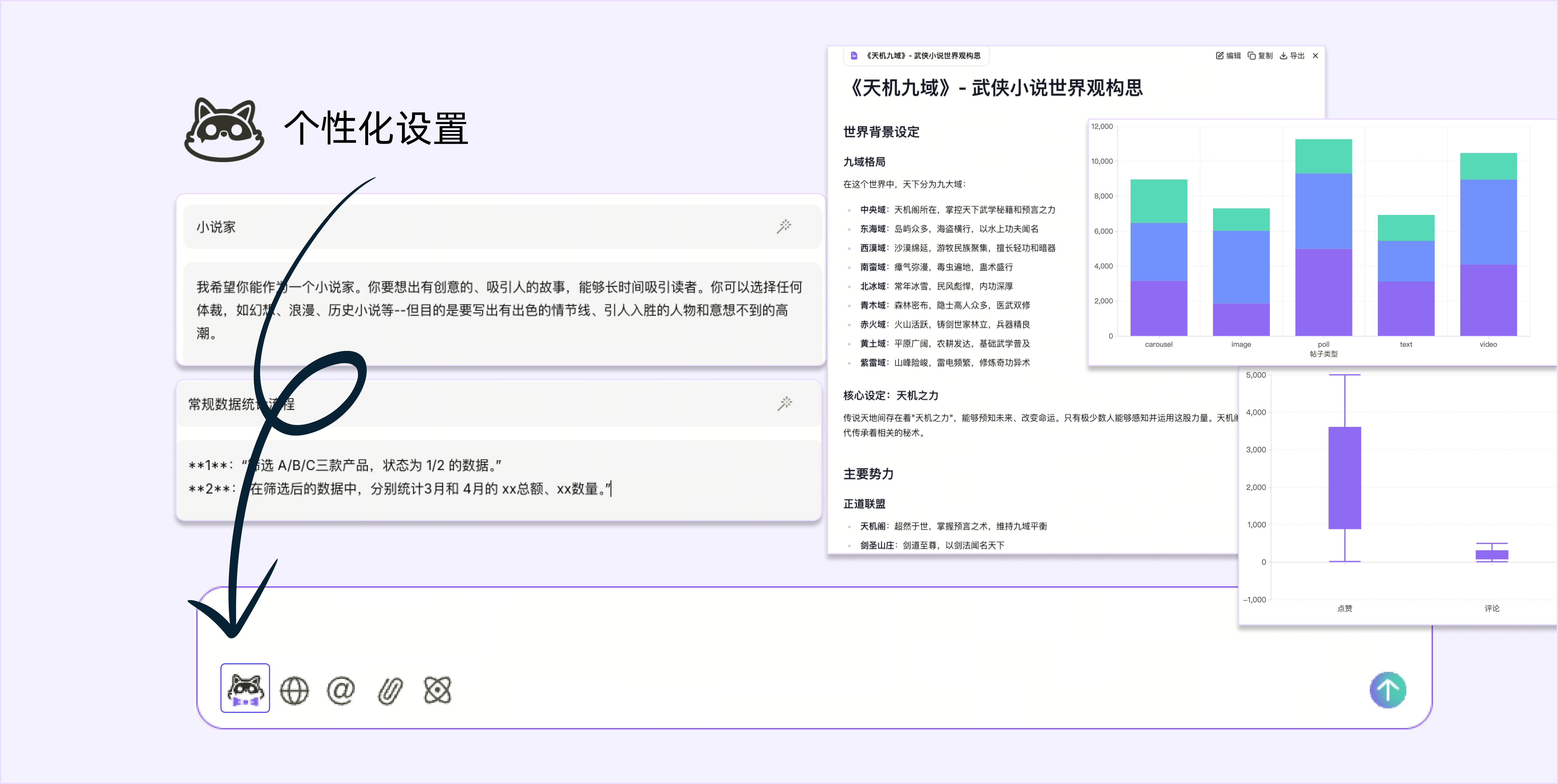
How it Works: The Custom Personas feature allows you to tailor Office Raccoon's conversational style and output preferences to fit your personal habits. You can find the "Personalization" entry point in the chat window. By creating and enabling different persona instructions, you can make the AI maintain a specific tone, identity, or task objective throughout a conversation, resulting in a more tailored experience.
Use Cases:
- Repetitive Tasks: Set up a dedicated persona for a specific task (e.g., writing weekly reports, optimizing proposals, analyzing data). The AI will then maintain a consistent style and approach across multiple conversations.
- Role-playing for Creativity: Customize distinct personas for different creative scenarios (e.g., brand copywriter, educational tutor, professional consultant) and switch between them quickly to boost efficiency.
- Team Collaboration: Team members can share and use the same persona templates to ensure a unified style in communication and output.
Important Notes:
- Switching between different personas may require starting a new conversation to take effect.
- The persona will only be active after you toggle on "Enable in new chats".