Knowledge Base
Introduction to the Knowledge Base
The Knowledge Base provides the following capabilities:
- Manage and organize various file resources. No need to re-upload files for analysis; simply @mention the file to start data analysis or conversation.
- Knowledge Base Search: Directly tell Raccoon AI what you're looking for, and it will quickly retrieve the information you need.
- Personalized Generation: Based on your knowledge base and preferences, Raccoon AI provides personalized plans, analysis, and writing assistance.
On the knowledge base page, you can see:
- Storage Space: Statistics on the raw file storage usage of your knowledge base.
- Knowledge Base Content: Statistics on the total usage of indexed content in your knowledge base.
- Total Files in Knowledge Base: The total number of files in the current department's knowledge base.
- Files at Current Level: The total number of files in the current path.
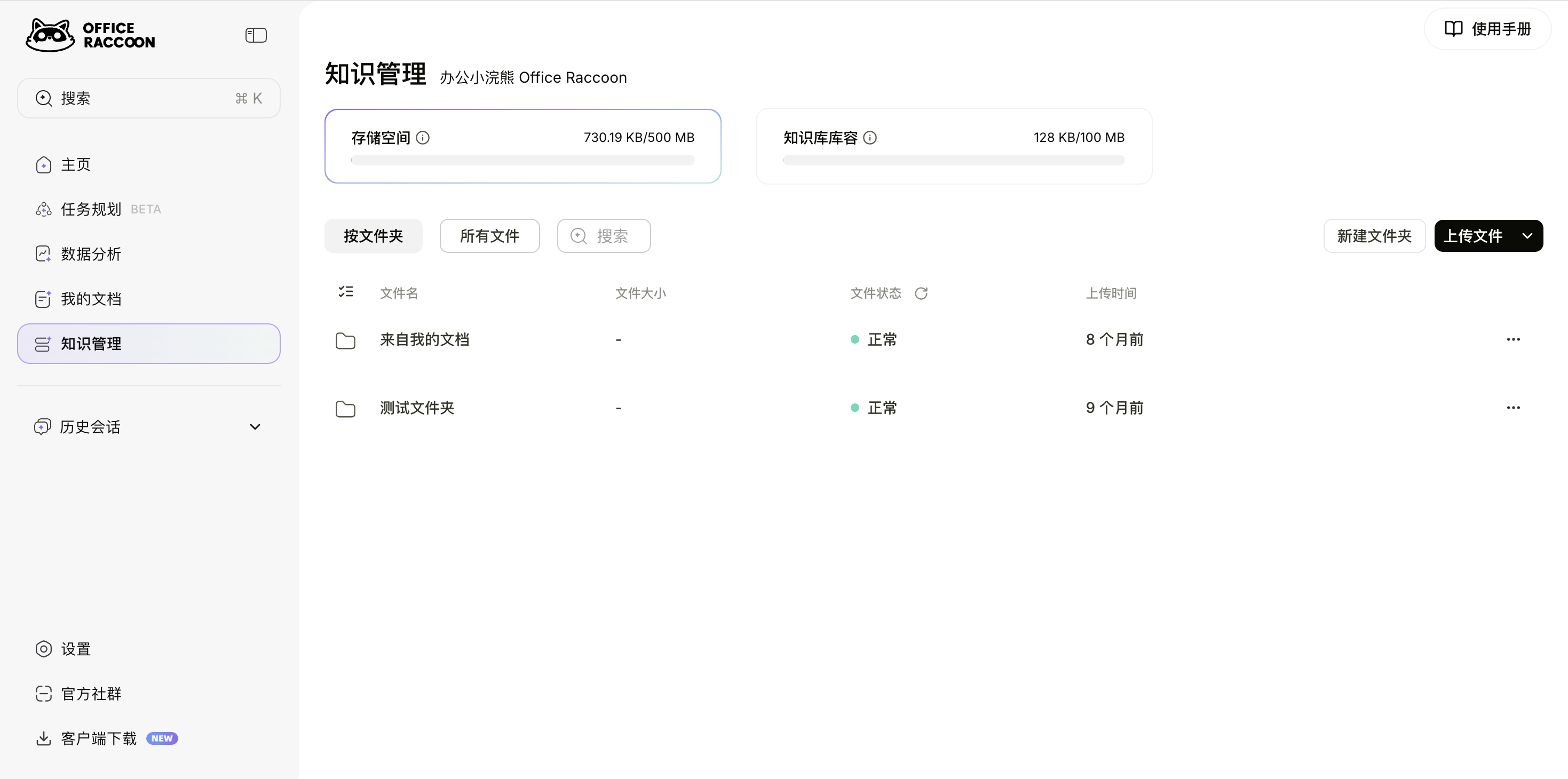
Managing Knowledge Base Files
Your knowledge base includes data from the following sources:
- From My Documents: Here you can see all attachments you've uploaded in
My Documents.You can choose whether to automatically save attachments from documents to the Knowledge Base in Settings > Feature Configuration > Document Configuration.
- Files you have uploaded in various conversations.
You can choose whether to automatically save attachments from conversations to the Knowledge Base in Settings > Feature Configuration > Document Configuration.
- Files you have actively uploaded in the knowledge base list.
Uploading Files/Folders
You can click Upload File (or the dropdown menu) in the upper-right corner of the knowledge base list to upload files or folders.
File Indexing Status
Once a file is imported into the Knowledge Base, Raccoon AI can understand its content and semantics. You can then @mention the indexed file in various features to have more intelligent conversations with Raccoon AI.
However, please note that file indexing takes some time. You can only experience the benefits of intelligent understanding after the indexing is successful.
- After being uploaded, all files enter the indexing process. In the knowledge base list, you can check the
File Statuscolumn to see the file's status, such asIndexing. - If a file shows an abnormal status, you can select the file, click the
···on the right, and chooseImport to Knowledge Baseto try re-indexing. - If the file status changes to
Ready, it means the file has been successfully indexed.
Editing or Deleting Files/Folders
Managing in Storage Space
When viewing the Storage Space list, you can click the ··· to the right of a file/folder to rename or delete it.
You can also use the checkboxes to select multiple items for batch deletion.
If you delete a file/folder from Storage Space, the corresponding information in Knowledge Base Content will also be automatically deleted.
Managing in Knowledge Base Content
When viewing the Knowledge Base Content list, you can click the ··· to the right of a file/folder to view the original file or delete it.
You can also use the checkboxes to select multiple items for batch deletion.